Table Service
Creating a Reusable Table Layout Template for Events
Tables are where an event makes much of its money — bottle service, booths, VIP. Though the POS recorded all the transactions, there was no way to collect all the statistical data that was crucial for forecasting future earnings.
Problem
How can we make our decisions on F&B, inventory, crew and revenue in one place?
Outcome
I built a table layout template that records all the data we need for analysis, so event managers can make decisions using data.
Role
Product Designer &
Developer
Timeline
5 Weeks
Concept, designsand the full feature shipped within 5 weeks
Week 1 — Research & designs
A junior developer and I ran a quick survey to understand the current experience, with a total of 17 responses. I designed the set of screens, the visual style and the information flow architecture.
Weeks 2 to 4 — Code & refine
Once the basic screens were defined, I coded the full flow using React and Node. Then the junior developer started refining the UIs while I completed the backend.
Week 5 — Usability test
We ran usability tests to check whether the feature was usable and useful for the event managers.
User researchresults & findings
Within a short period of time, we carried out a tiny survey with 17 event managers. Here are the results:
- 88%
of participants wish they had a quicker way of telling the crew what the table arrangement should be on the event floor.
Event managers had to set up the tables prior to the events by pointing out each table one by one. It was overwhelming and time-consuming to repeat at every event.
- 71%
of participants needed a way to dig into analytics other than the revenue they had collected through events.
Even though all the sales were recorded in the system and revenue was calculated through the POS system, they had no further way to analyse their sales at a micro level and make future decisions based on a broader view.
Tables are the uniteverything is measured in
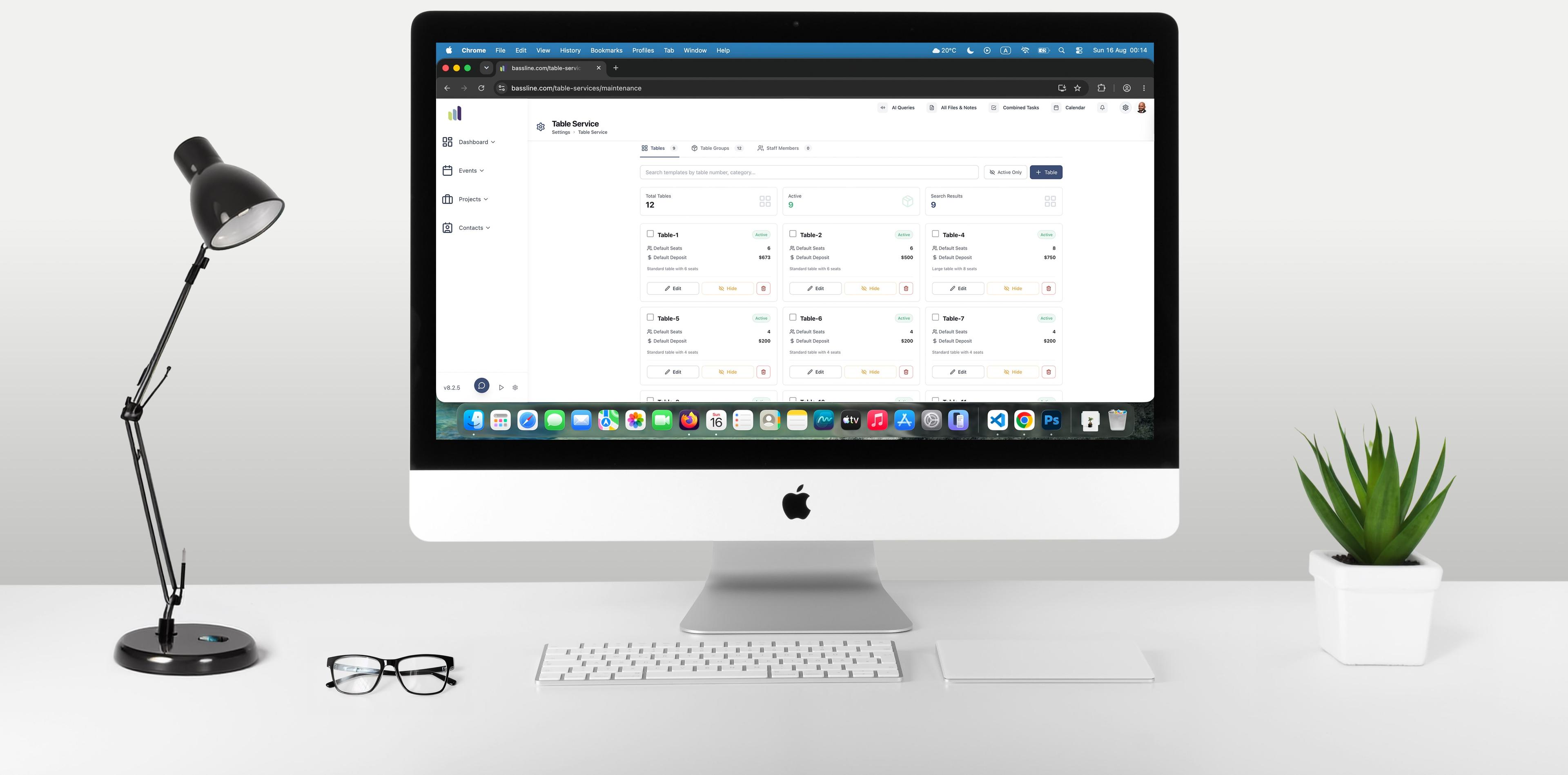
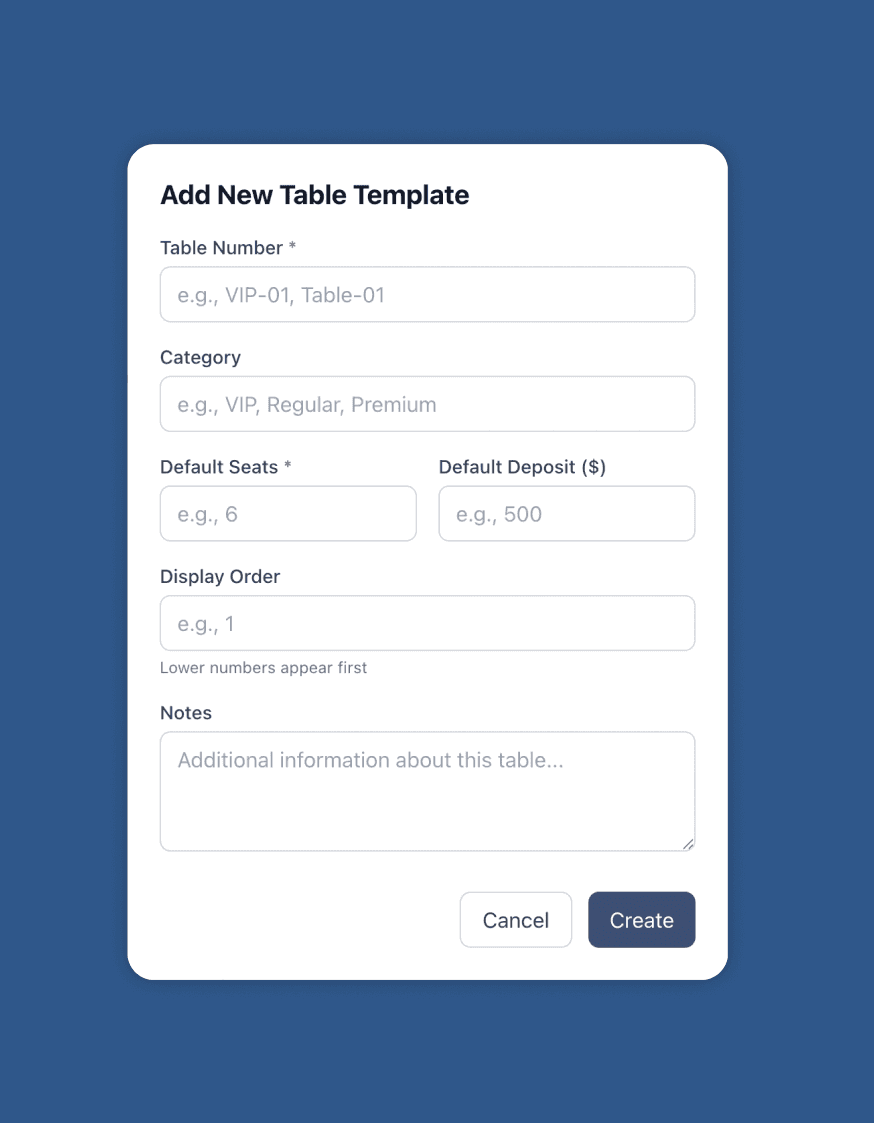
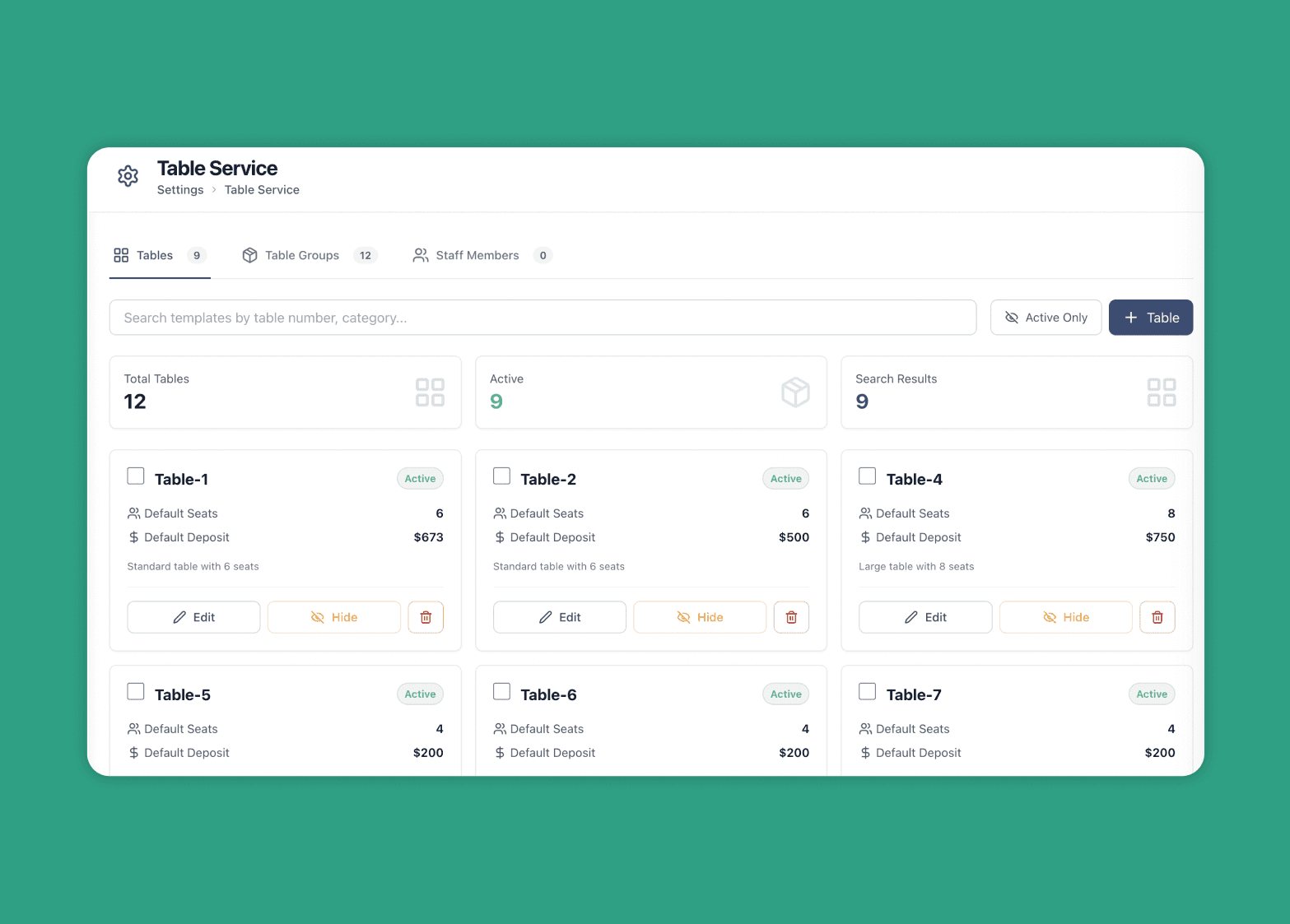
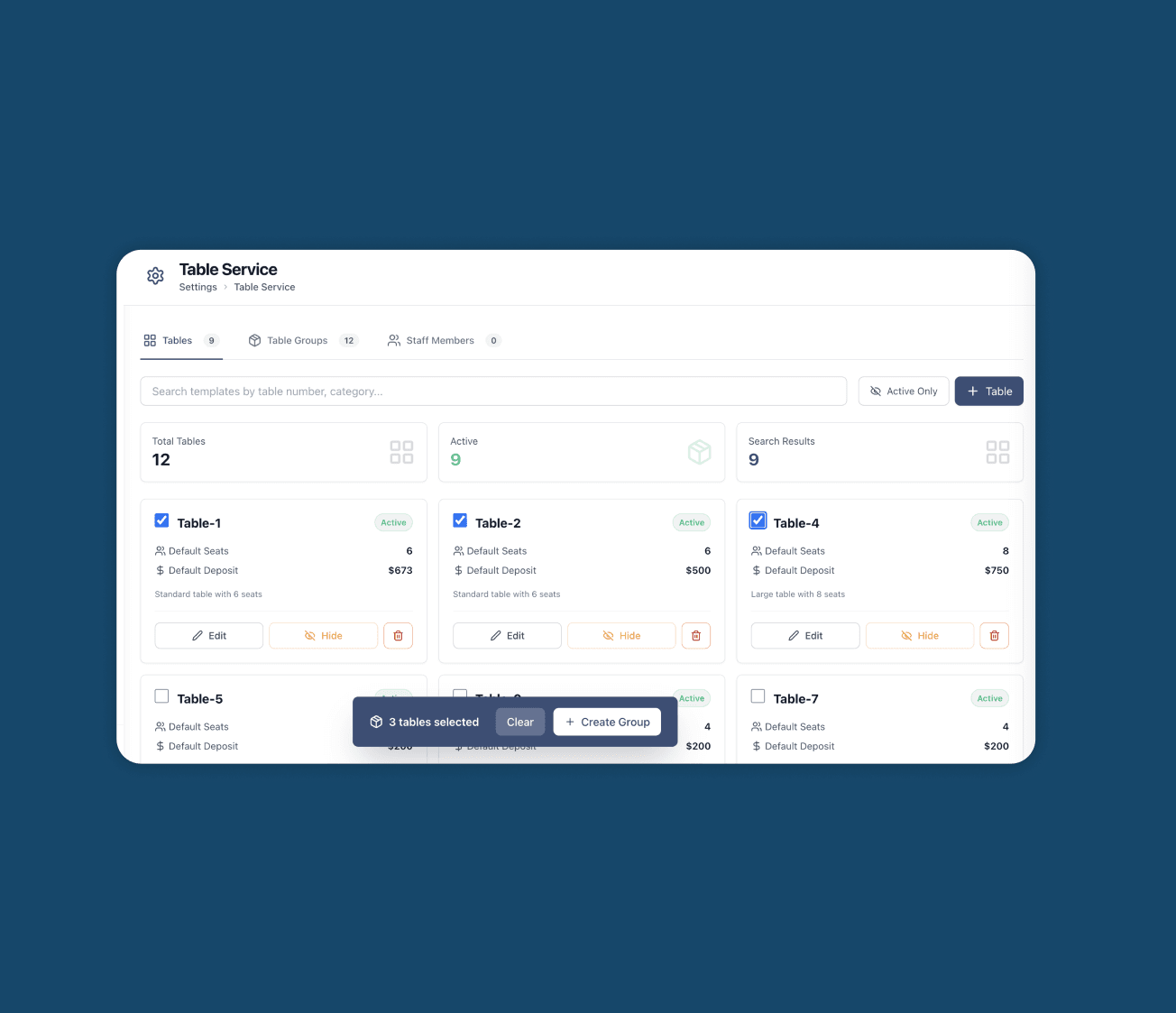
The first step is to define the tables to match the ones physically available. Users can create a new table and add information in the given fields. This is the base point from which we start collecting data for our analytics.
Each table is a starting point that acts as a template. Users can add or remove chairs, change deposits and change the order as they go. So this is the basic unit of the feature.
A group has a namethat sets up the floor
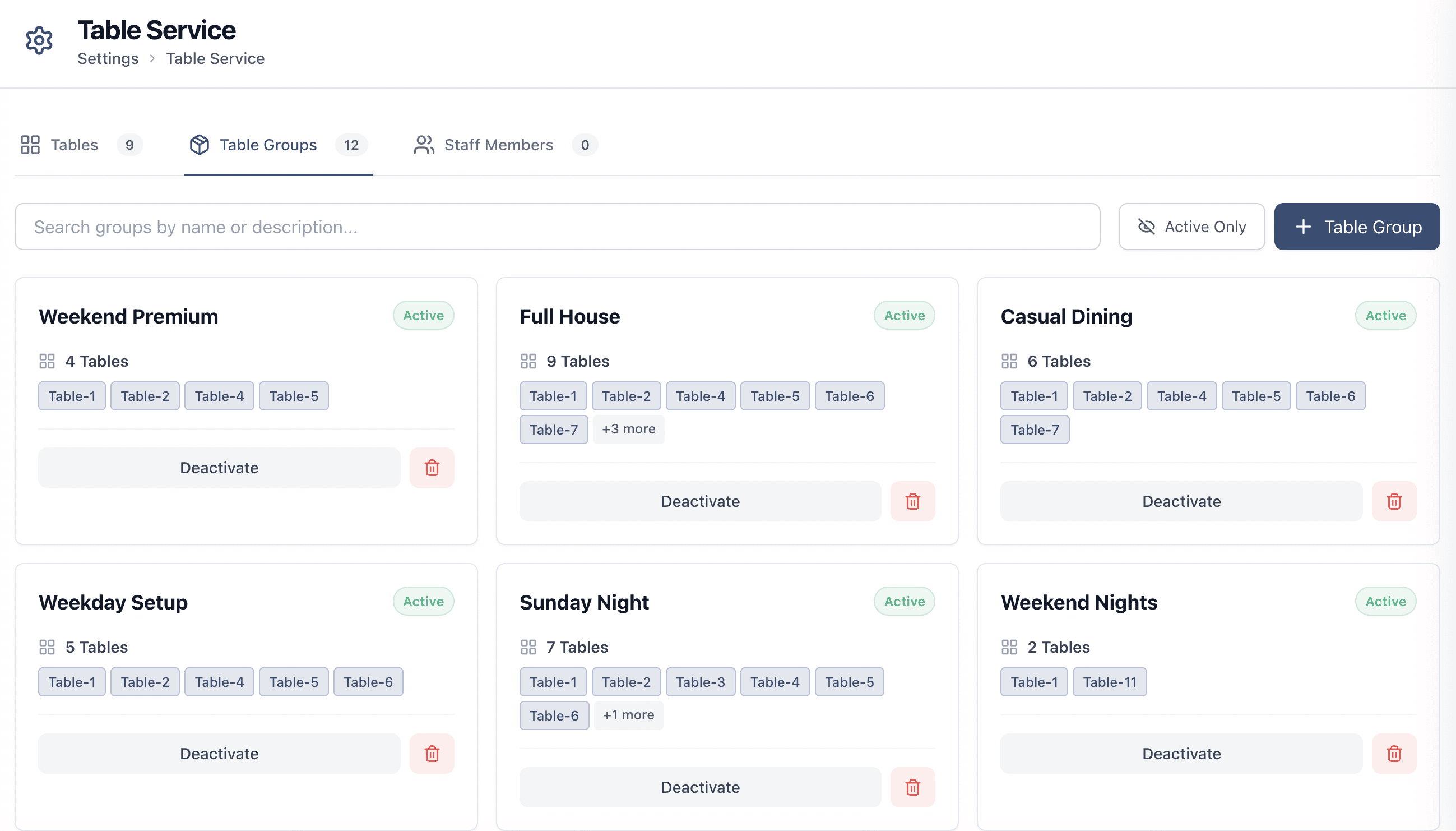
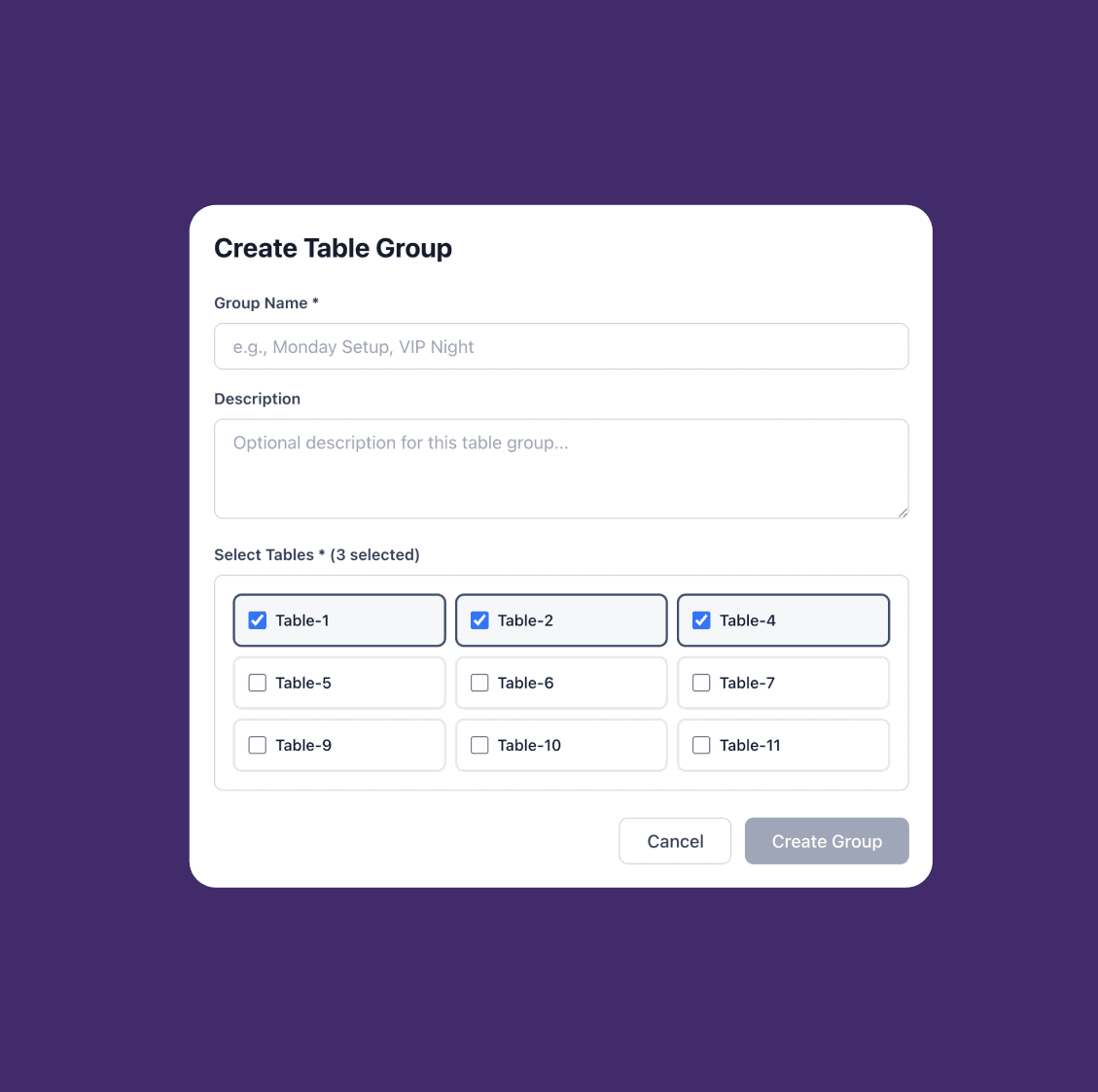
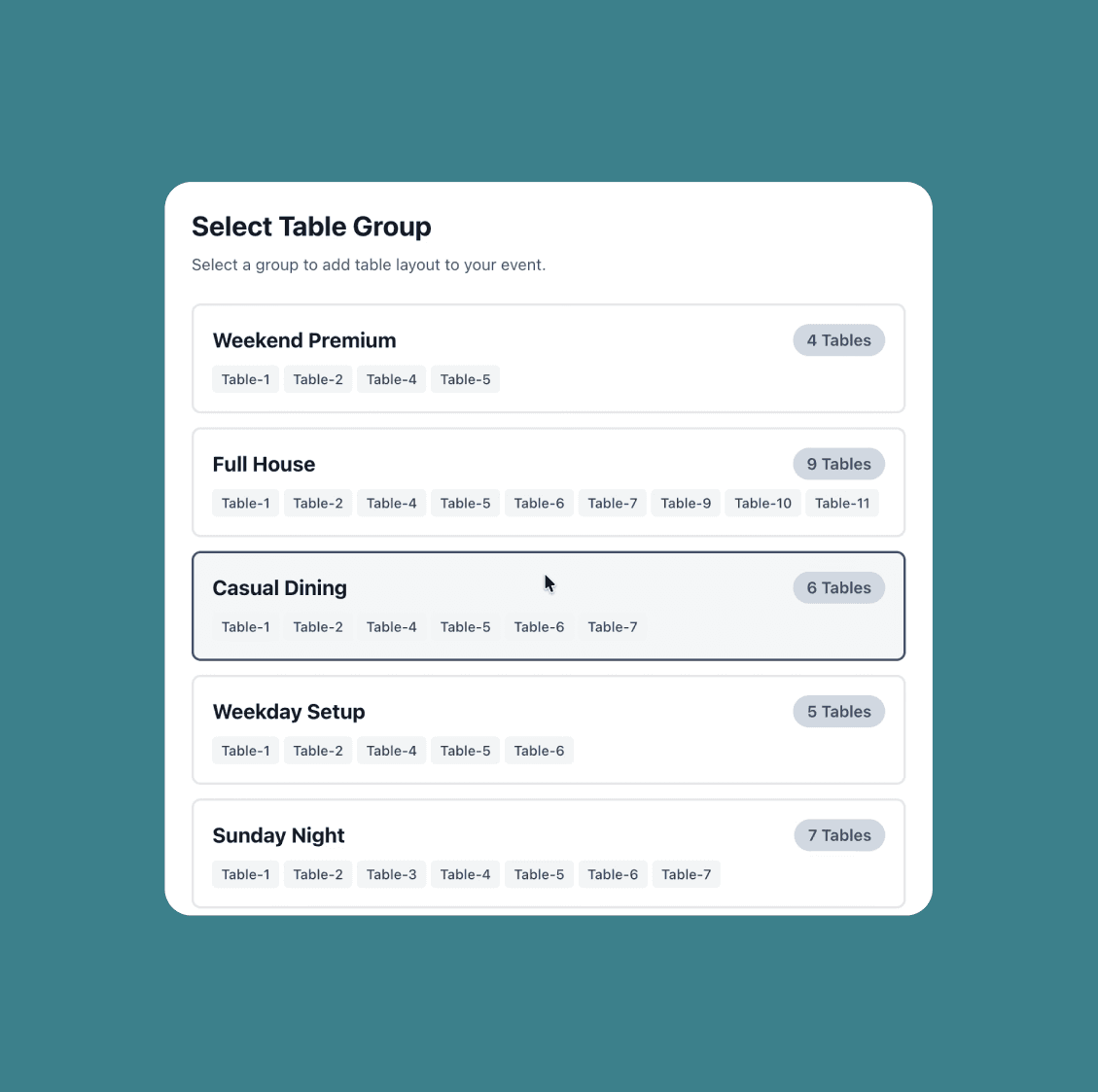
This is the part that saves the crew and the manager. The manager can group the tables, name the group and save it as a template.
When a layout change is needed, the manager only has to name the table group — “Tonight is Casual Dining” — and the crew follows from there. No one needs to worry about which table, how many chairs, what the display order is and so on.
Staff are recordsso the results have a name on them
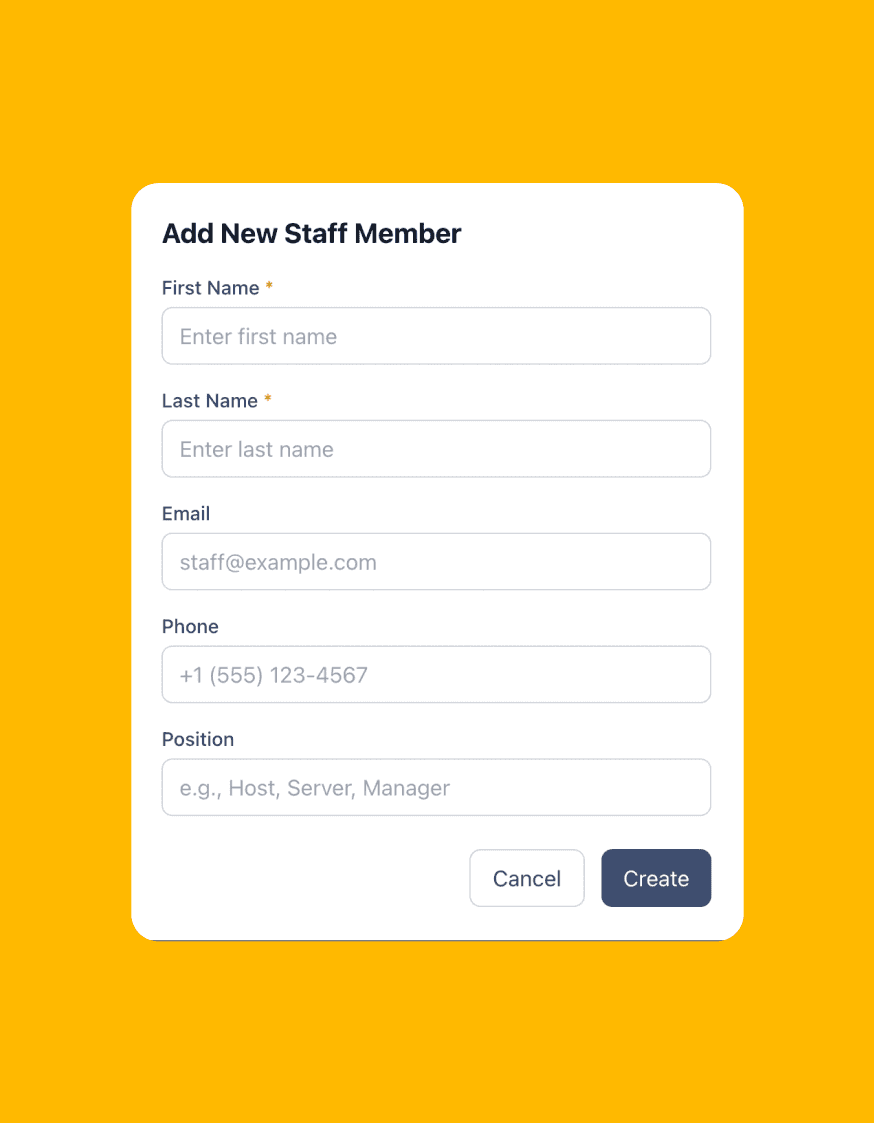
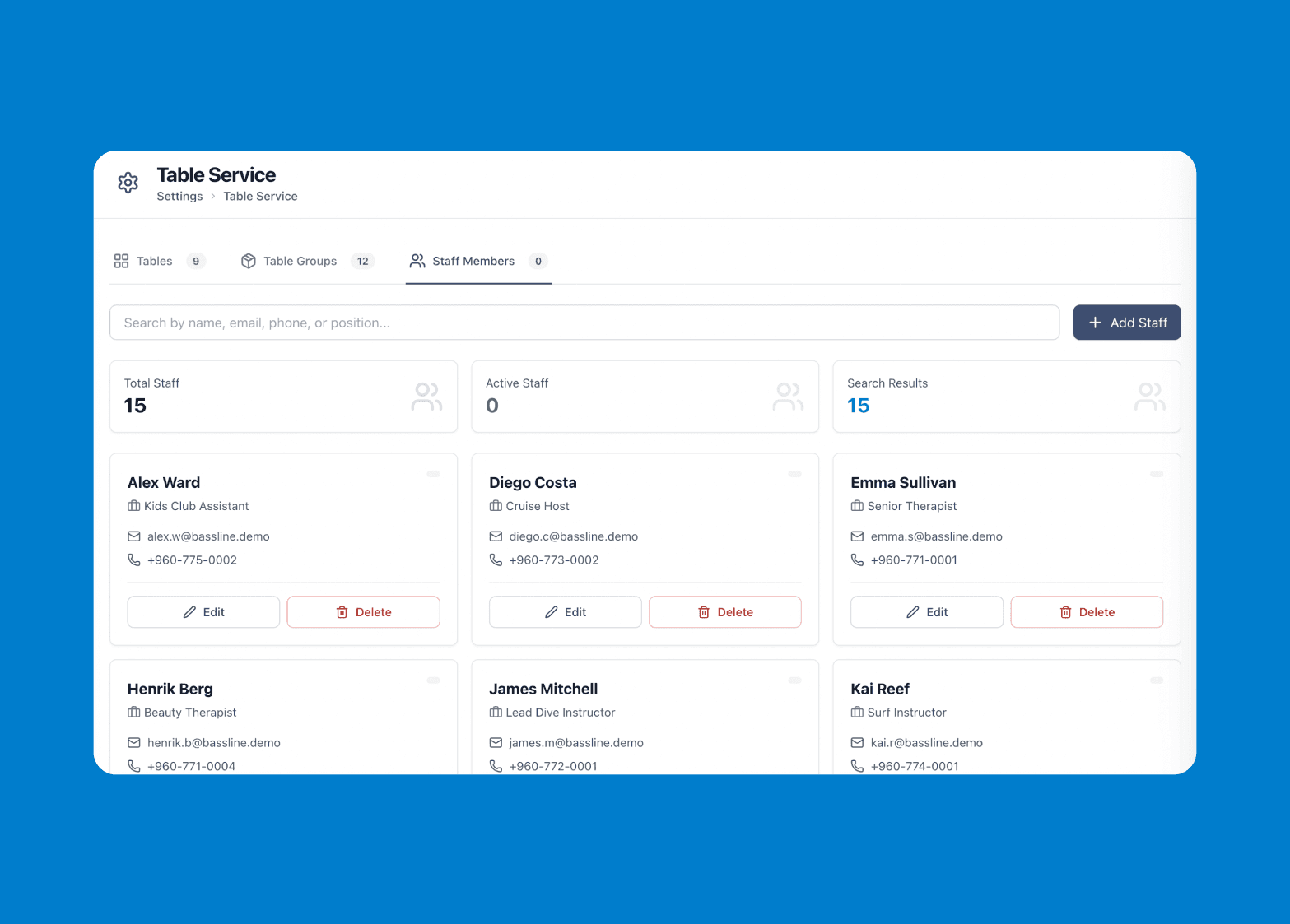
Nobody serves the same table every day. To know who turns the best table, each crew member has to be a record that the results can later be grouped by.
In later steps, when planning a table, the host is selected from a dropdown. To maintain all that, staff are kept in a separate section.
Starting an eventis one decision
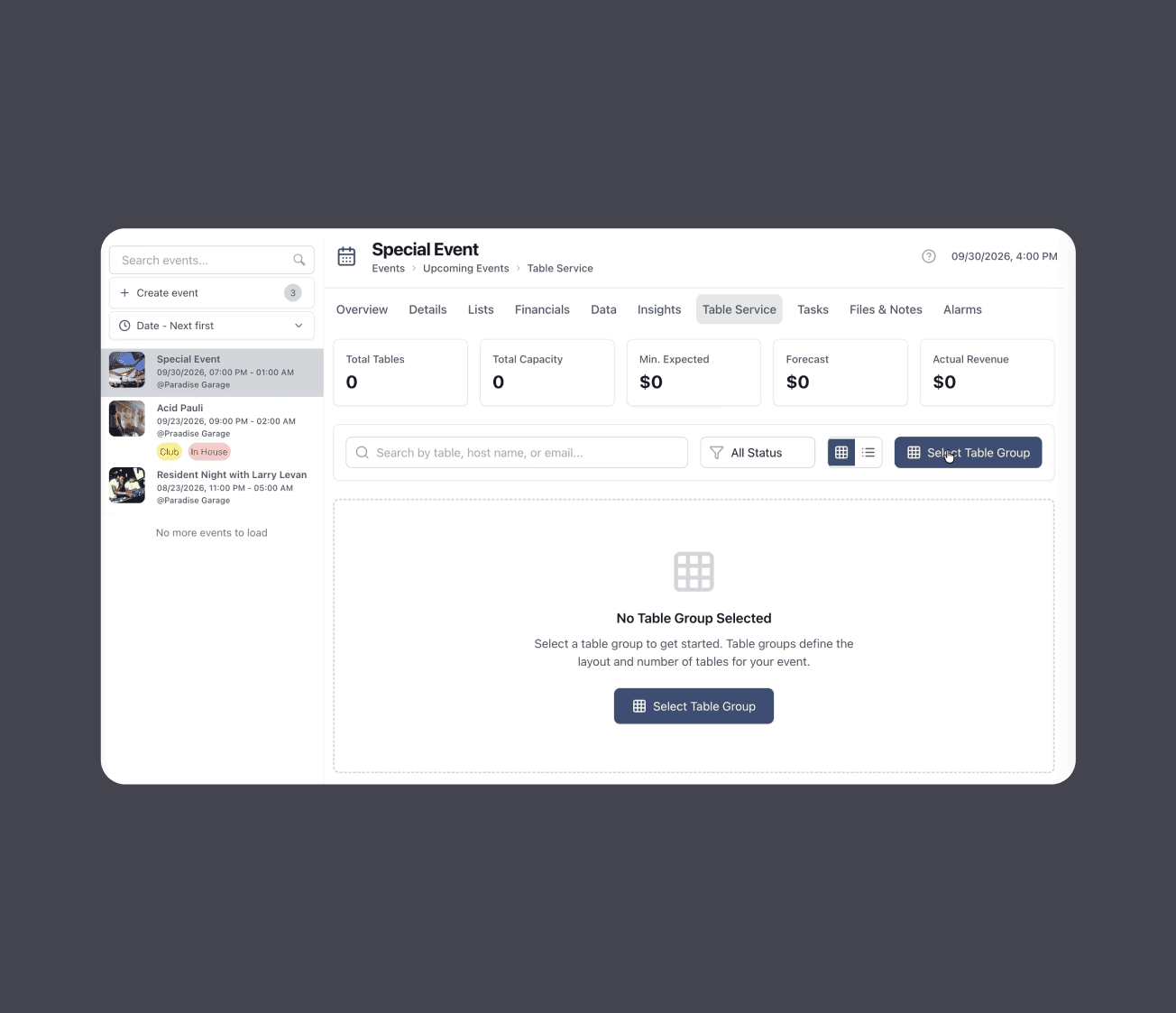
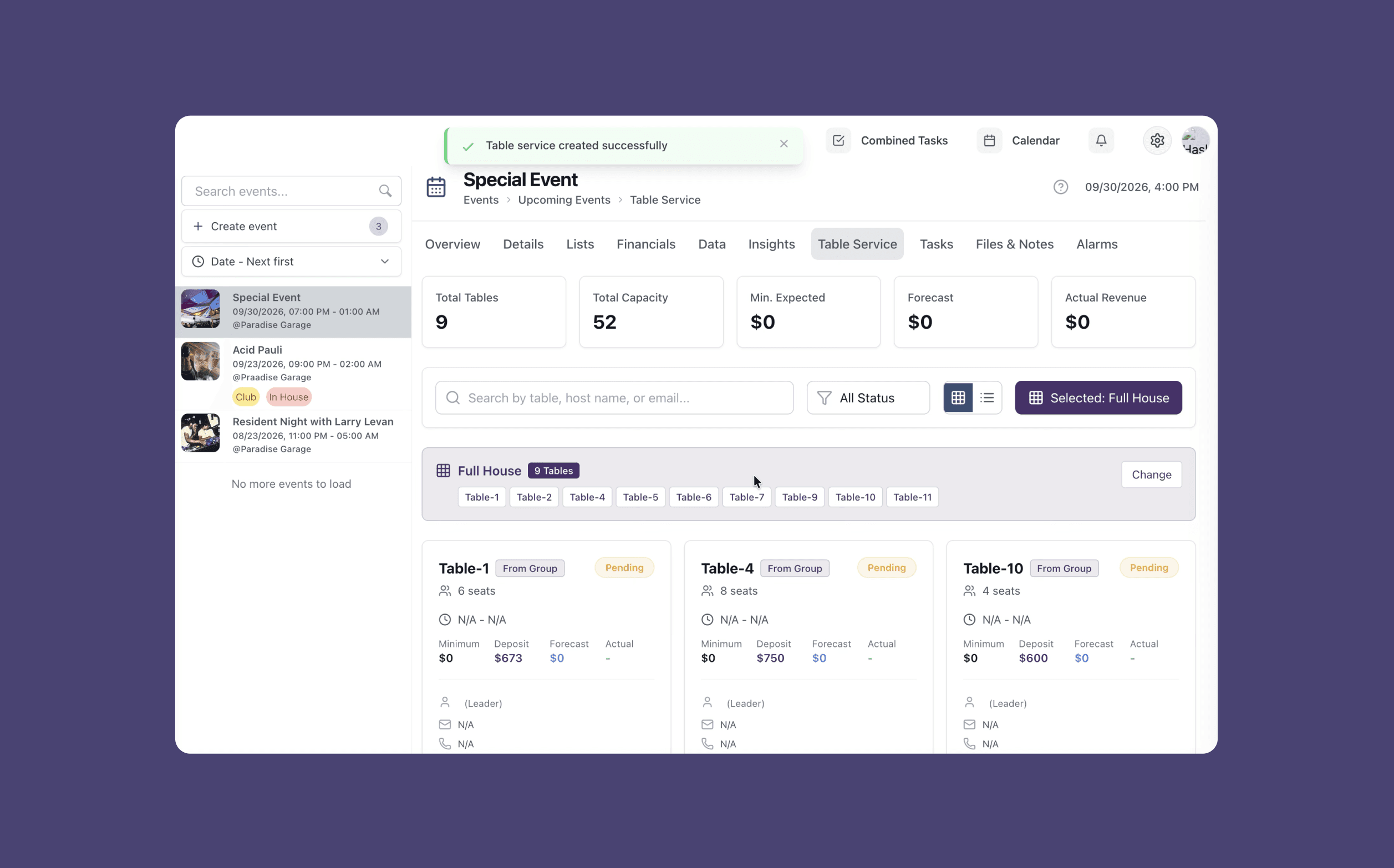
On Events, the manager picks the group, and the system creates a live record for every table in it — seeded with that table’s seats and deposit information.
From the crew’s side, that is the whole setup instruction on the floor.
What each tablerecords
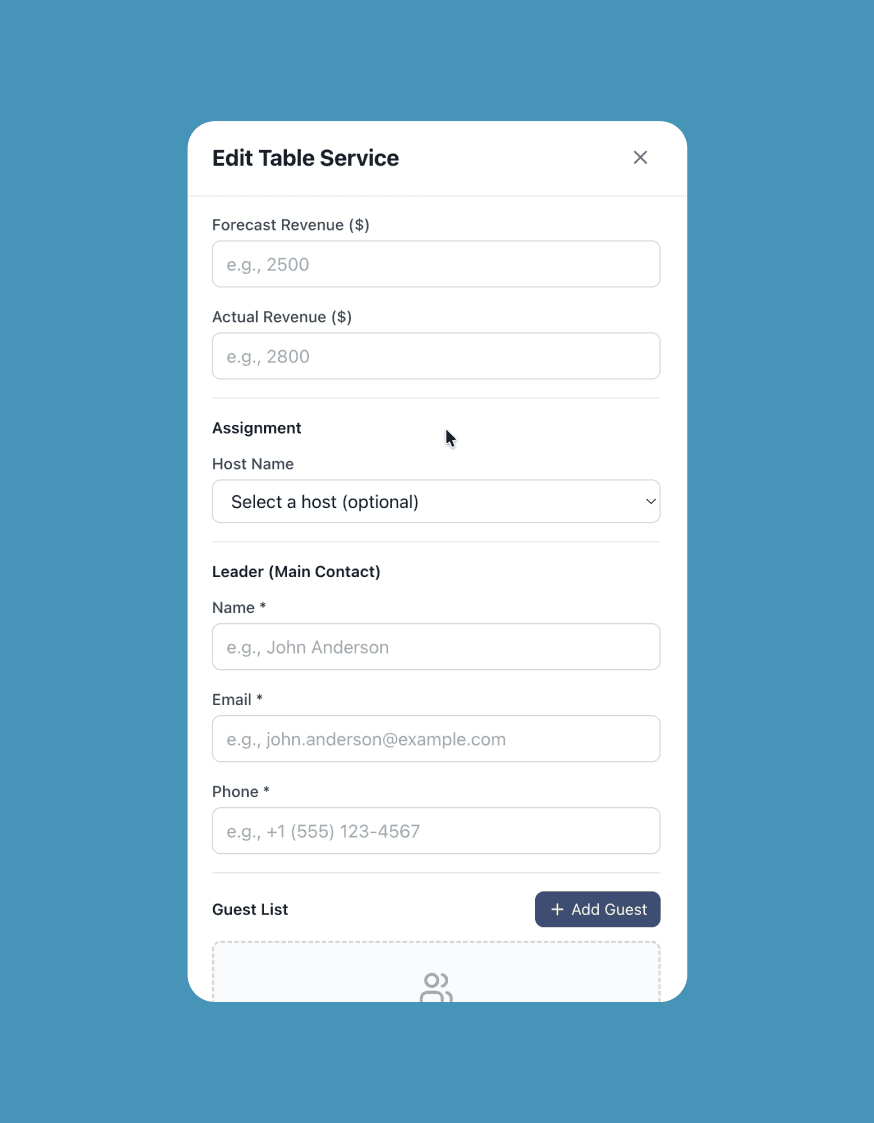
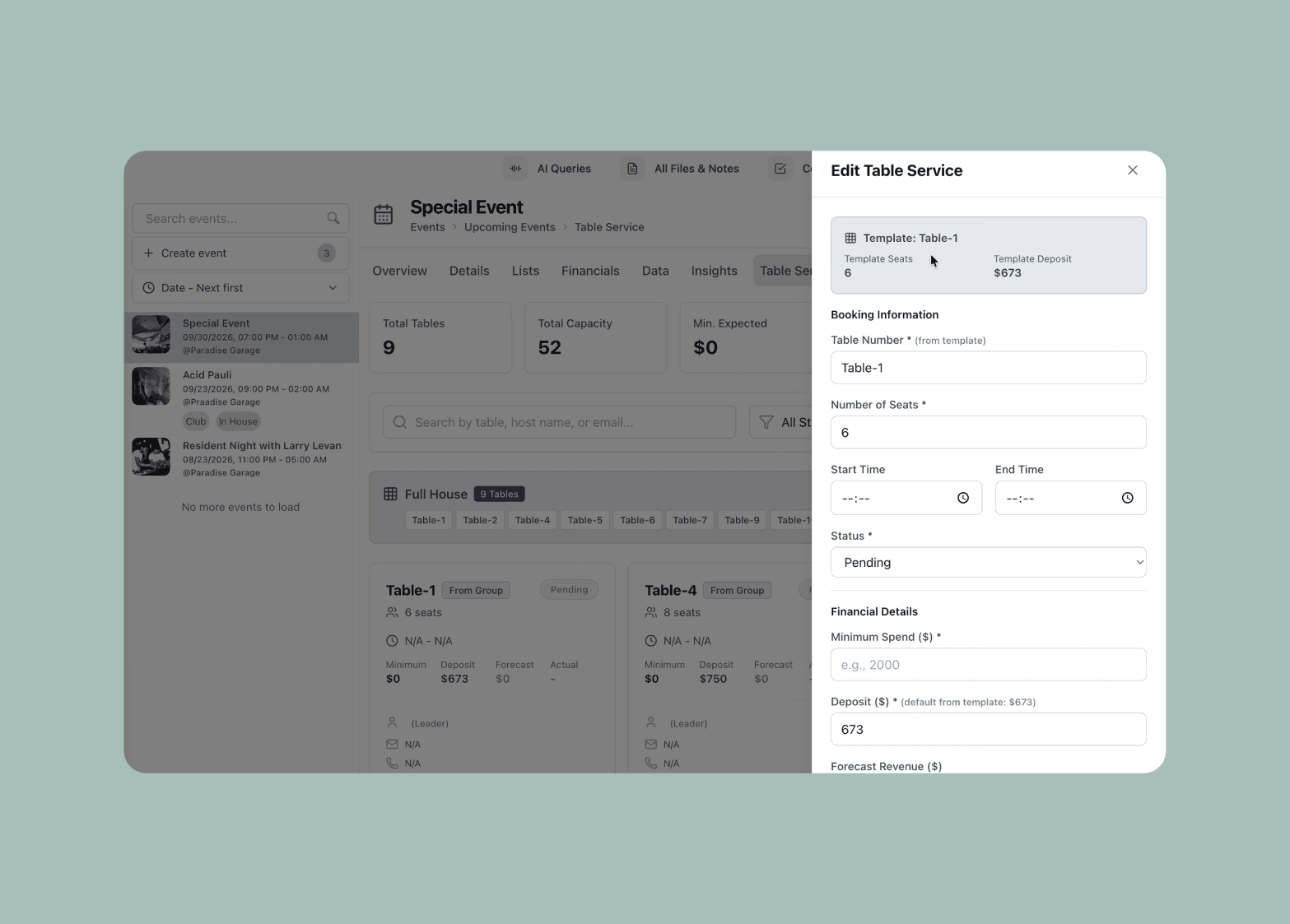
This is the point of the whole feature. A booking holds who ran it, who booked it, when it ran, what was expected of it and what it actually did.
This is the place where we add the serving start time, serving end time, status of the table (pending, confirmed, completed or cancelled), forecast revenue, actual revenue, host, guest list and so on.
Event managers fill in all the details when they plan the event.
What the datawas for
These are the questions the model was built to eventually answer:
- 01.
Which layout performs
Does Full House actually out-earn Casual Dining on a Friday, or does it just use more staff?
- 02.
Which host performs
Who turns the highest average table, and who consistently beats their forecast?
- 03.
Which tables earn
- 04.
What sells
The drink and the dish that carry the room, and how fast the bar has to be restocked to keep up.
- 05.
What next month looks like
Forecast against actual, repeated across a year, is the only honest basis for predicting the next one.
Usability testsand iterations
We carried out usability tests with 7 event managers, along with 20 crew members. The intent was to find out whether users could understand our features, use them fully, and interpret them as designed.
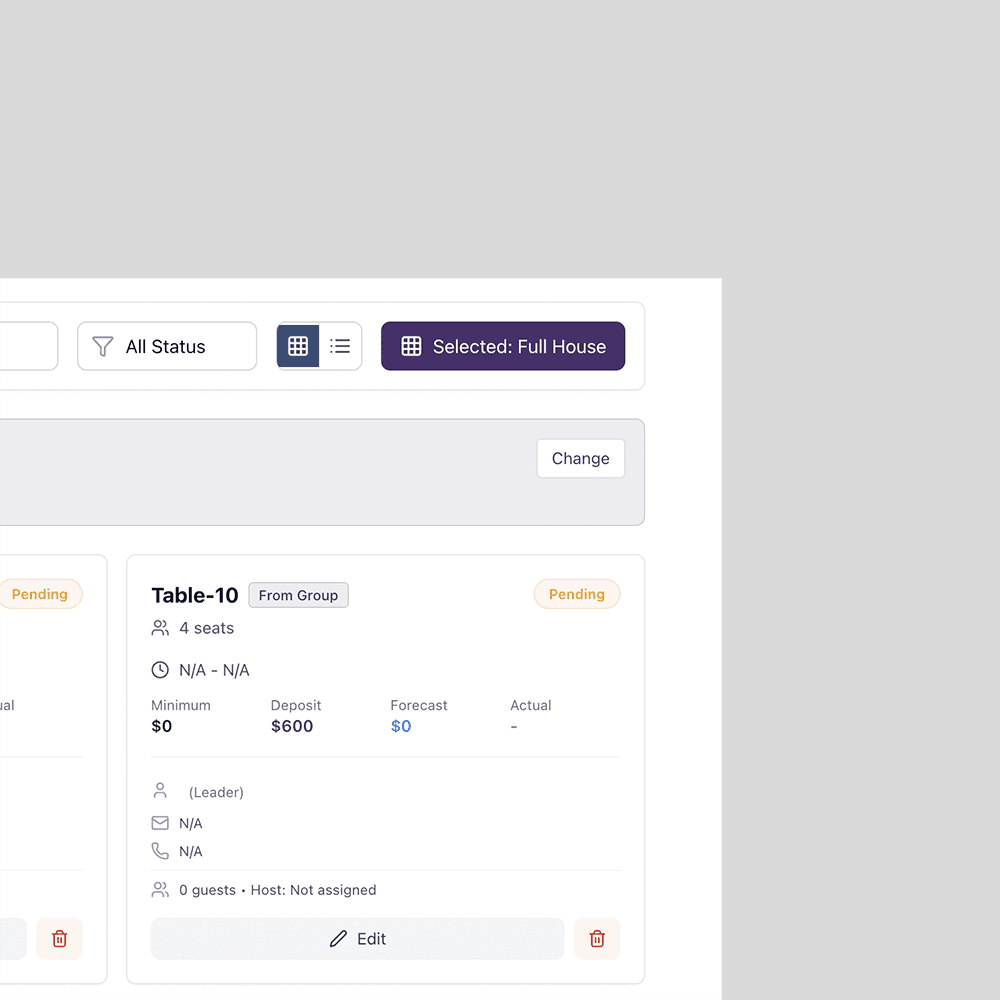
Users felt one thing was missing: the actual layout of the table arrangement.
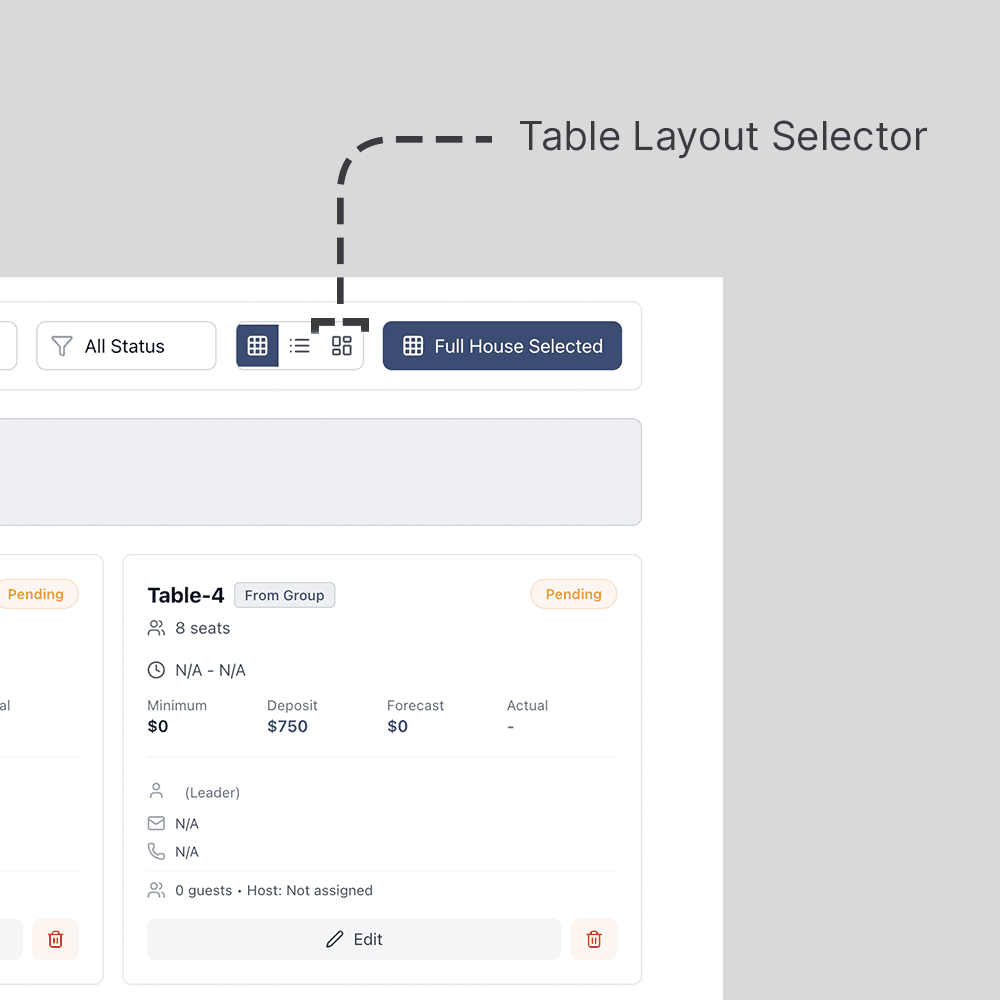
We added a layout view to the feature so that managers can arrange the table plan on the floor.
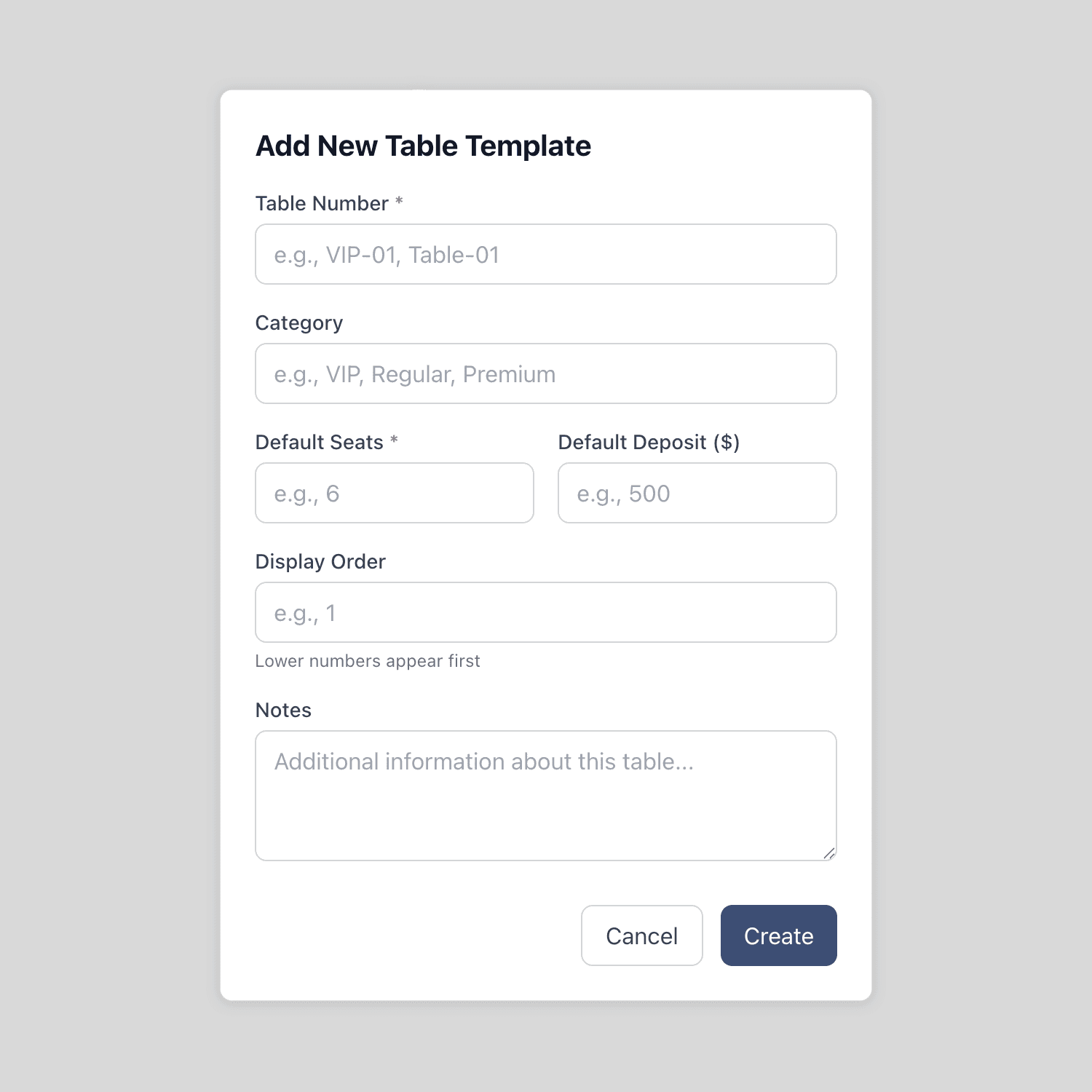
Initially, it was just one form to collect the table data, with no way to visually represent what the table looks like.
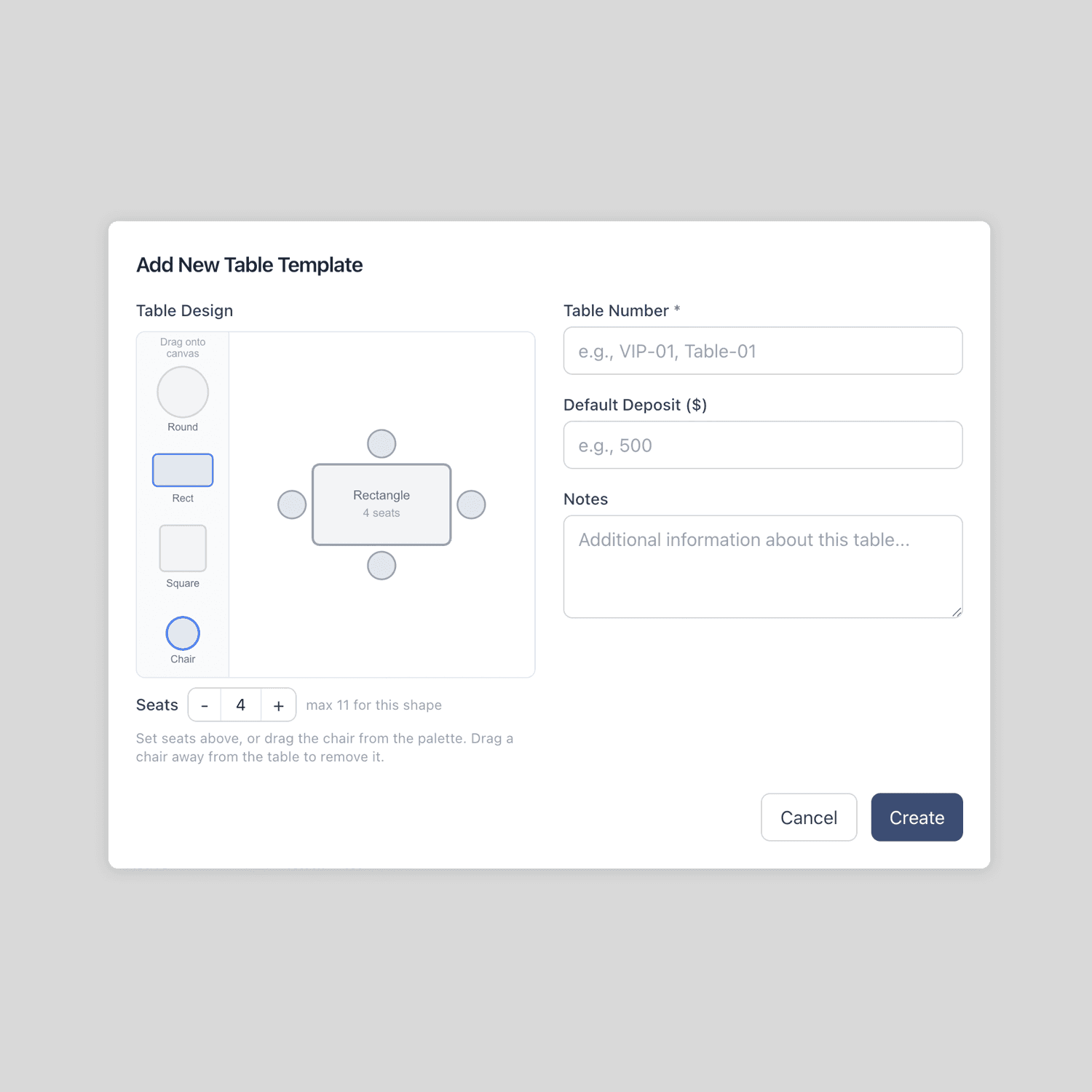
We added a small canvas so that users can arrange the table and the chairs to their preference. Managers can drag and drop different shapes of tables and multiple chairs, so it represents the actual physical table-and-chair setup.